Launch special
PrintGuardian M5
$199
One payment · standard shipping included
- ✓ PrintGuardian M5 gateway included
- ✓ 1 year subscription included
- ✓ Free guided installation support
- ✓ $19/year after first year
A dedicated maintenance gateway and guided support routine that keeps your print heads clean, your output consistent, and your hardware running longer.
Live status
Humidity 42% · Temp 25°C
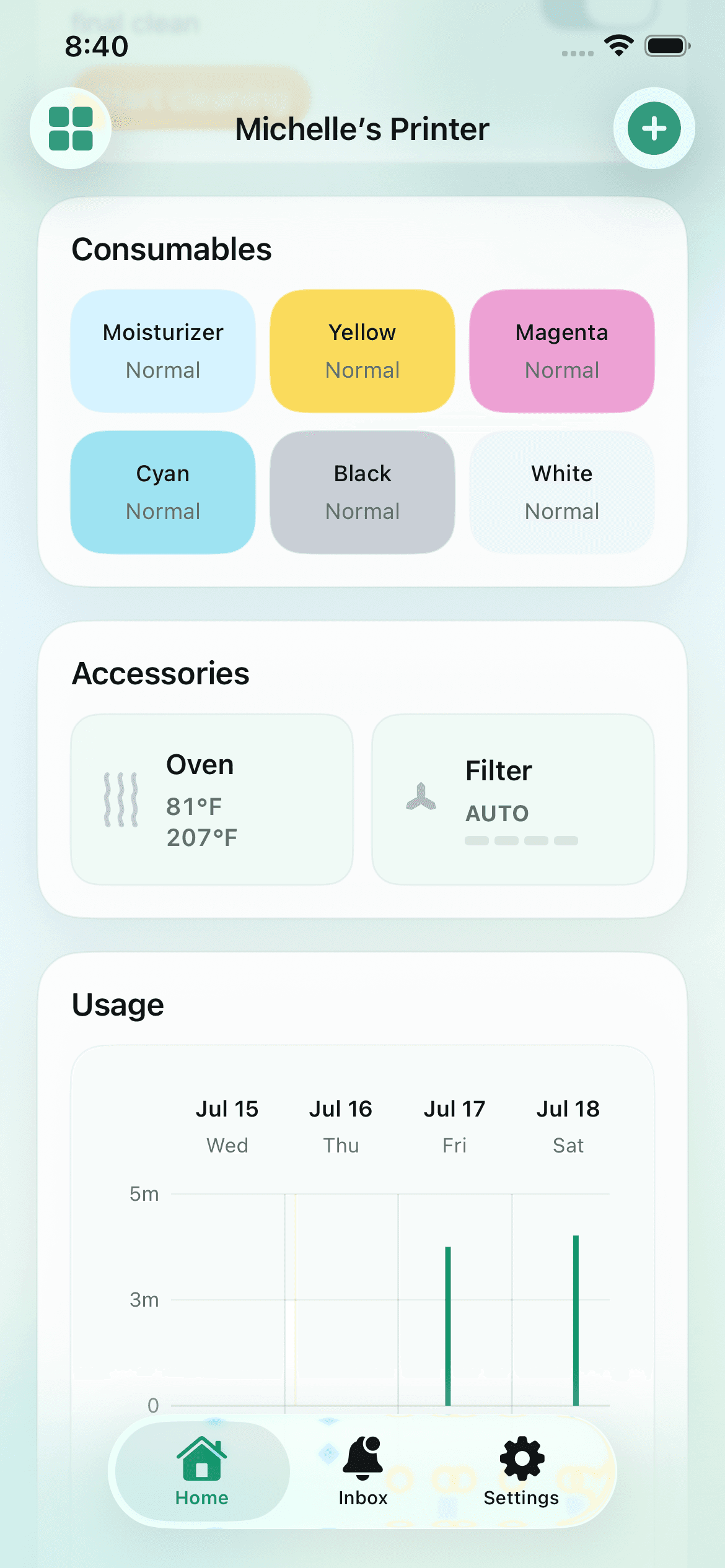
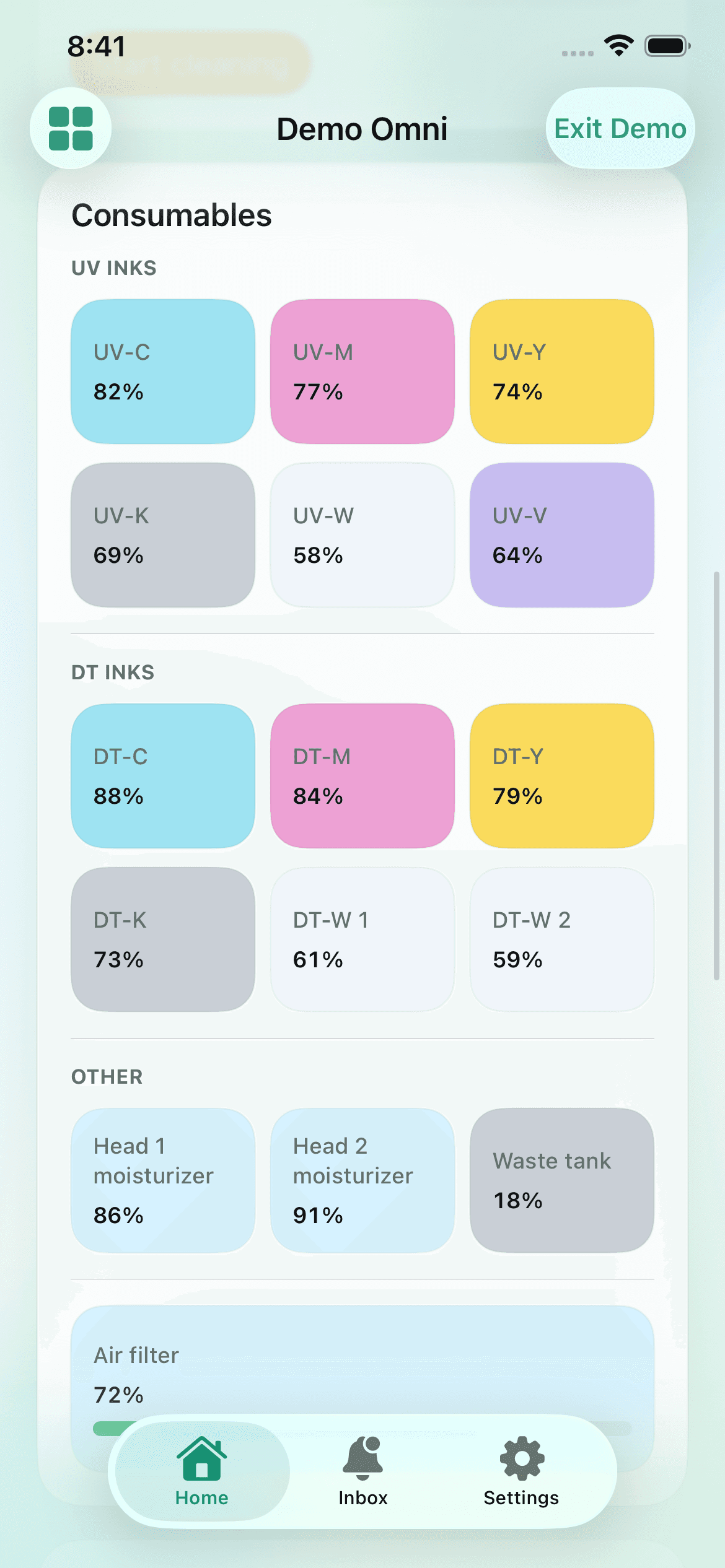
Consumable alerts
Ink low · Waste 68% full
Usage monitoring
142 prints today · 4h runtime
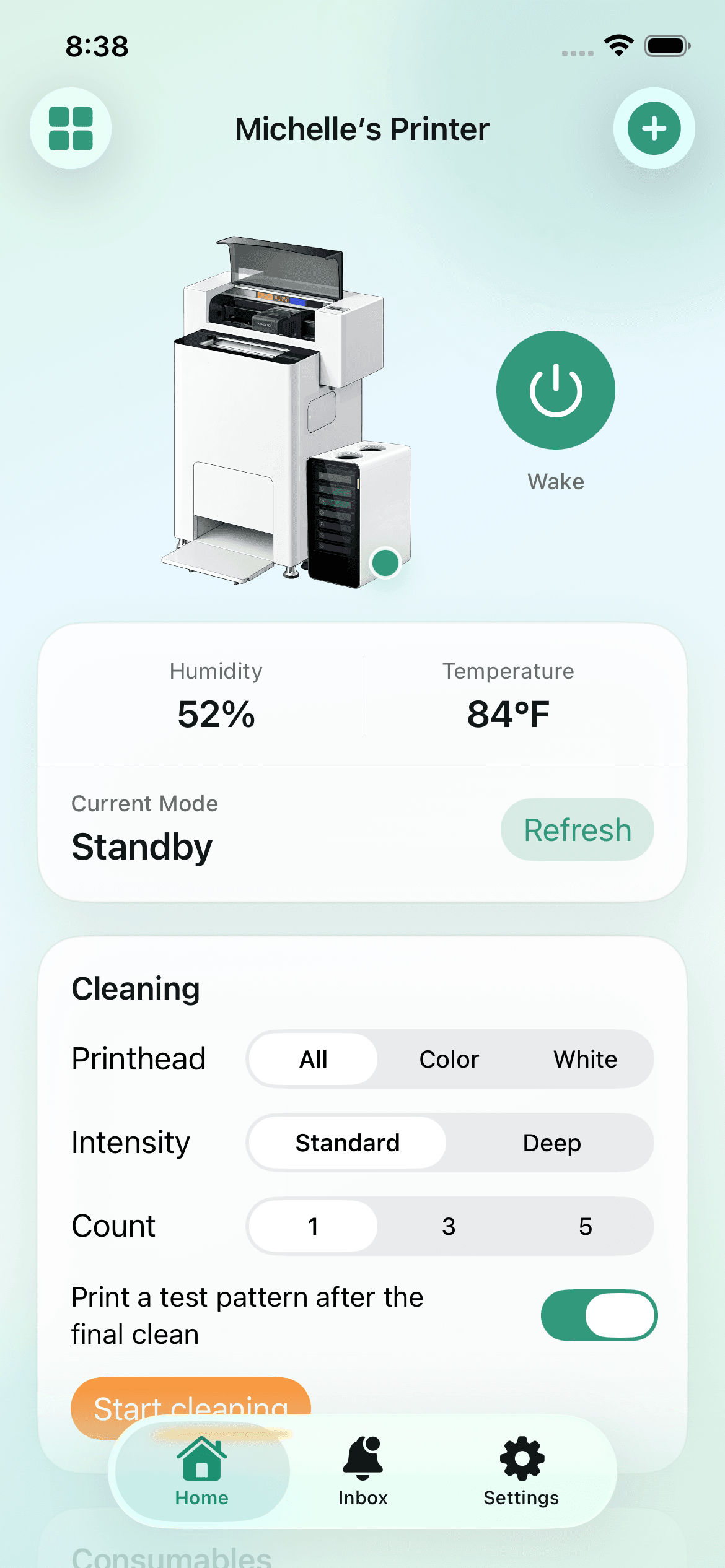
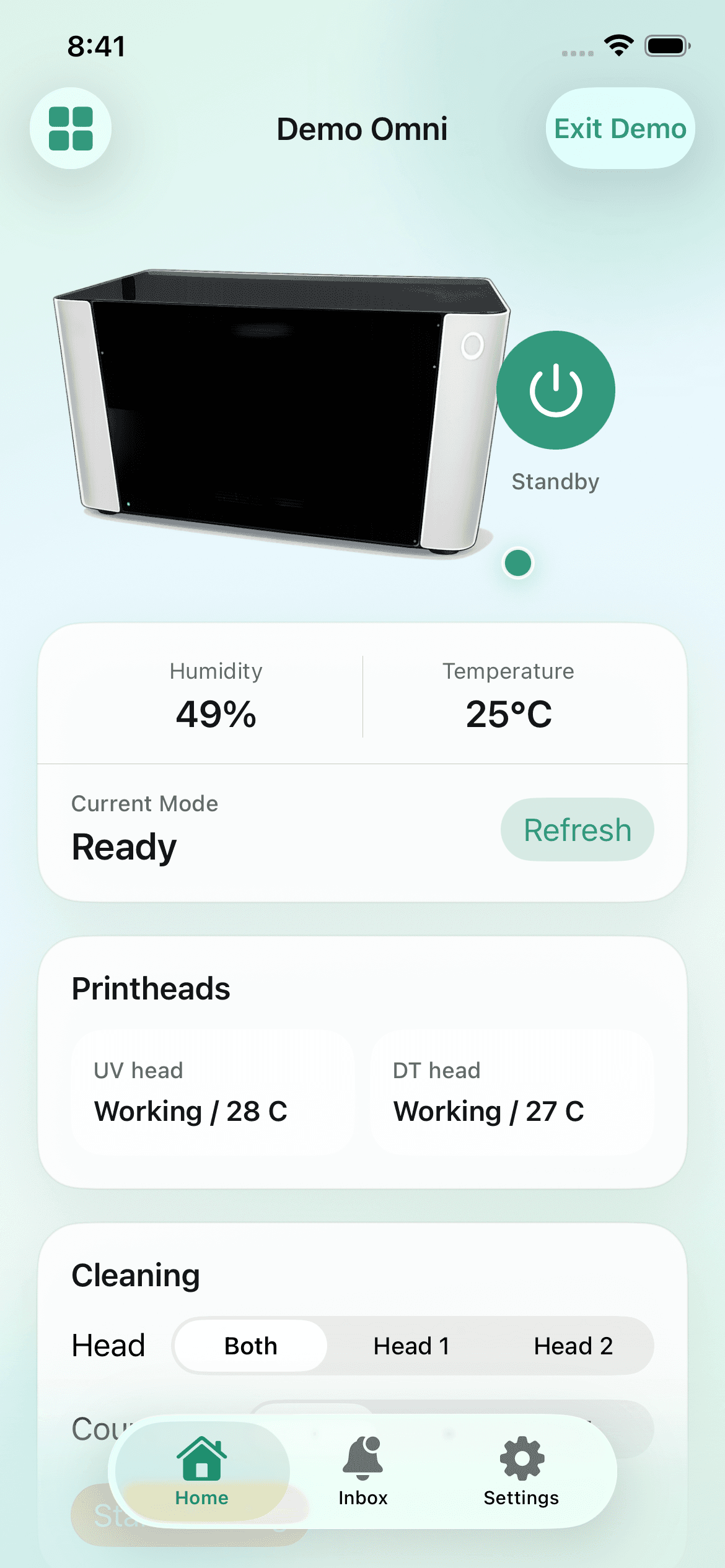
Current mode
Ready
1-tap cleaning
Color · White · Deep
Smart cleaning
Proactive maintenance
Launch sale price
Savings versus retail
Subscription included free
Guided installation support
Why it matters
Print quality degrades quietly — until a run is ruined or a print head fails. The PrintGuardian M5 keeps your team ahead of that curve.
Guided maintenance keeps your output predictable. Clogs, color drift, and off-quality runs happen less when upkeep is routine, not reactive.
Print head replacements are expensive and avoidable. The PrintGuardian M5 helps you keep the hardware you have in working condition longer.
A dedicated gateway monitoring your printer keeps maintenance visible. Your team stays on schedule instead of troubleshooting mid-production.
How it works
The PrintGuardian M5 gateway lives on your print floor. Proximity makes maintenance visible and keeps your team on a consistent routine.
Every buyer gets guided onboarding. Our team walks you through setup so you're not left figuring it out alone.
Follow the guided routine and your printer stays healthier longer. Fewer bad runs, fewer costly surprises.
Pricing & availability
Order now for $199 instead of $279. Standard shipping and one year of PrintGuardian are included.
Launch special
PrintGuardian M5
$199
One payment · standard shipping included
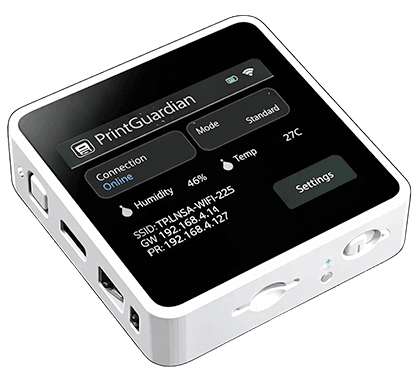
PrintGuardian M5 Gateway
The hardware that connects your printer to the PrintGuardian ecosystem
Retail price
PrintGuardian M5
$279
Standard price after the launch sale
FAQ
Short answers about what the M5 monitors, what it changes, and what it needs to stay useful on a real print floor. Have another specific question? Contact support and we'll be happy to help.
Yes. Each PrintGuardian M5 connects to and monitors one printer 24/7. If you have multiple printers, you can add multiple M5s to the app and switch between them.
We do not love subscriptions either, but there are ongoing costs to run the cloud service, mobile apps, notifications, billing, updates, and support.
We kept it intentionally low at $19/year after the included first year, so PrintGuardian can keep working long after the hardware sale.
Use the Billing Portal link in the footer. You can update your payment method or cancel your subscription at any time.
The iOS and Android apps show printer status, current mode, temperature, humidity, recent print usage, recent cleanings, consumable levels, and power failure detection when your Wi-Fi stays online on backup power.
You can wake or put the printer in standby, run one or more cleans, monitor ink and waste levels, and receive alerts for low ink, full waste tank, film errors, and high or low temperature or humidity.
PrintGuardian monitors printer activity, temperature, and humidity, then uses its maintenance algorithm to wake the printer, run a cleaning cycle, and put the printer back to sleep when needed.
Cleaning uses ink and moisturizer, so the goal is balance: keeping ink fresh in the heads and lines without wasting more supplies than necessary.
DTF printers are designed to be used regularly. If ink sits too long, it can dry in the heads or lines and cause clogs, sometimes leading to expensive print head replacement.
The xTool Apparel Printer and xTool Apparel Printer Plus should stay plugged in so they can run their stirrer and light maintenance, but they do not automatically perform the same full cleaning routine that PrintGuardian can manage.
No. PrintGuardian helps reduce risk, but it does not replace normal DTF startup checks. xTool still recommends running a clean and printing a test page before production, such as at the start of each day.
The difference is that you can start that clean from the app before you walk over to the printer.
No. PrintGuardian does not affect the actual printing process or the artwork being printed. It uses the printer's own maintenance controls, such as wake, standby, and cleaning.
Because the M5 stays connected, we mute the printer's connection sound. We also recommend turning off oven auto preheat so automatic cleans use less energy and make less noise.
By default, the printer can print a test page after a clean. To avoid clogging the oven with extra pages, PrintGuardian turns that off for automatic cleans.
When you run a clean from the app, you can choose to print a test page. If the previous test page has not been removed, the printer will not print another one.
PrintGuardian does not access or copy your original-resolution design files. To show the Tasks list, it processes limited job information reported by your connected printer, including the filename, status, timing, and a small preview thumbnail. We do not receive or store the original source artwork.
No. The PrintGuardian M5 needs USB-C power 24/7 and should not be powered from the printer's USB-C port. Use a standard USB power adapter and USB-C cable.
The M5 has a built-in backup battery for outage detection. For that detection to work, the printer must go offline and Wi-Fi must remain available.
The printer should be on Ethernet or reliable Wi-Fi, and the M5 should be connected to reliable Wi-Fi. Bluetooth is only used during initial setup to get the M5 connected to Wi-Fi.
Yes. You can share a PrintGuardian-connected printer with another user as view-only access or full control, depending on what they should be allowed to do. You can revoke access at any time.
Yes. For the shaker oven, PrintGuardian can show current and target temperature, heating status, powder status, film motion, and feed, stop, or eject film controls.
For AP2-style air purifiers, PrintGuardian can show fan setting, fan speed, and filter levels. For the IF2 inline fan, it can show fan setting and speed.
Already using PrintGuardian? Jump straight into your dashboard.
Dashboard →